Kitchen Display (KDS)
A simple screen for the kitchen that shows every order, what to cook, and what stage it is in. No paper tickets needed.
What is this screen?
The Kitchen Display is the screen the chef and kitchen team look at while cooking. Every time a waiter or customer places an order, it appears here automatically. You can see what to cook, how long the order has been waiting, and which ingredients each dish uses.Think of it as a board of order tickets. Each ticket is a card, and the cards move from left to right as the food gets cooked.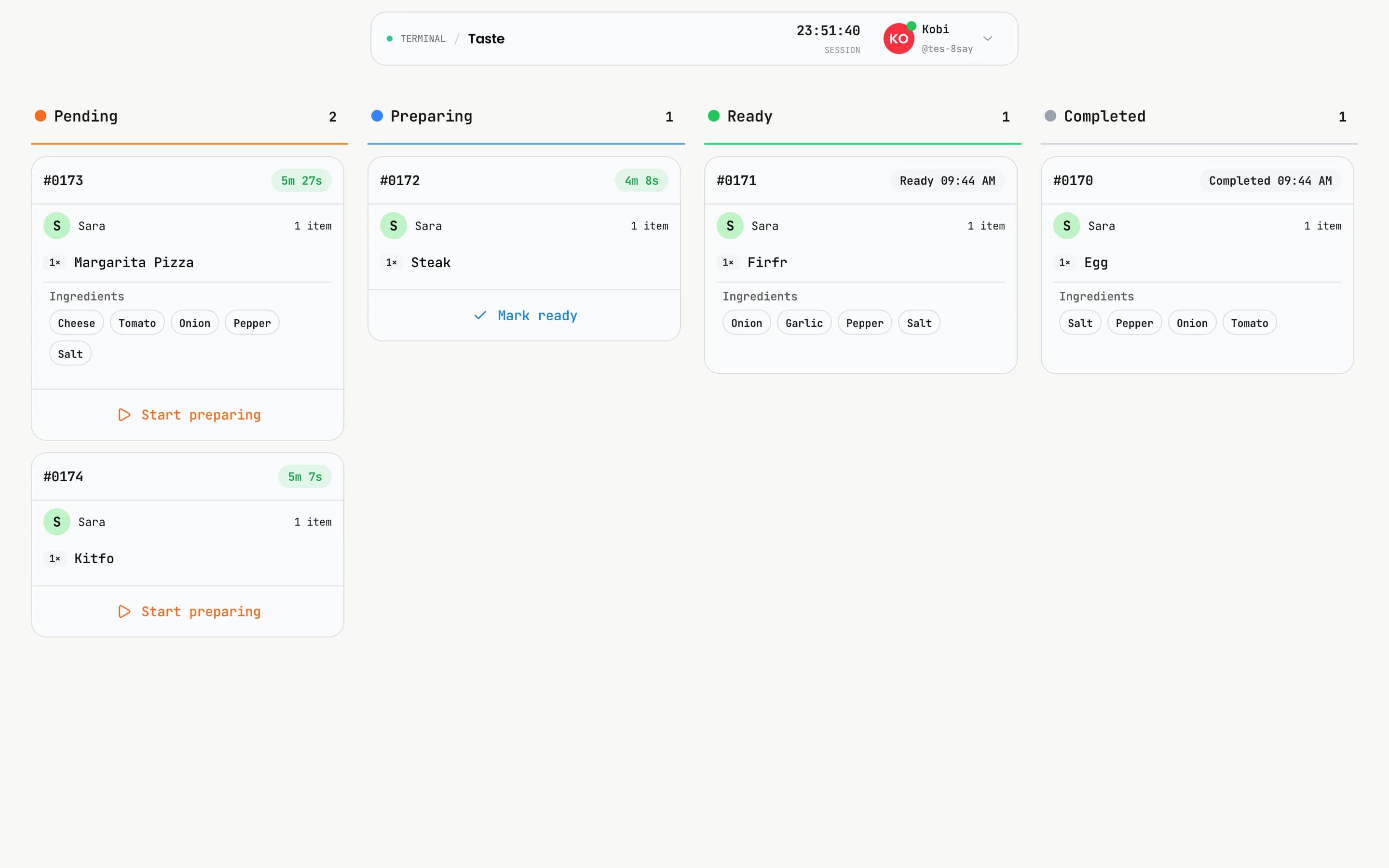
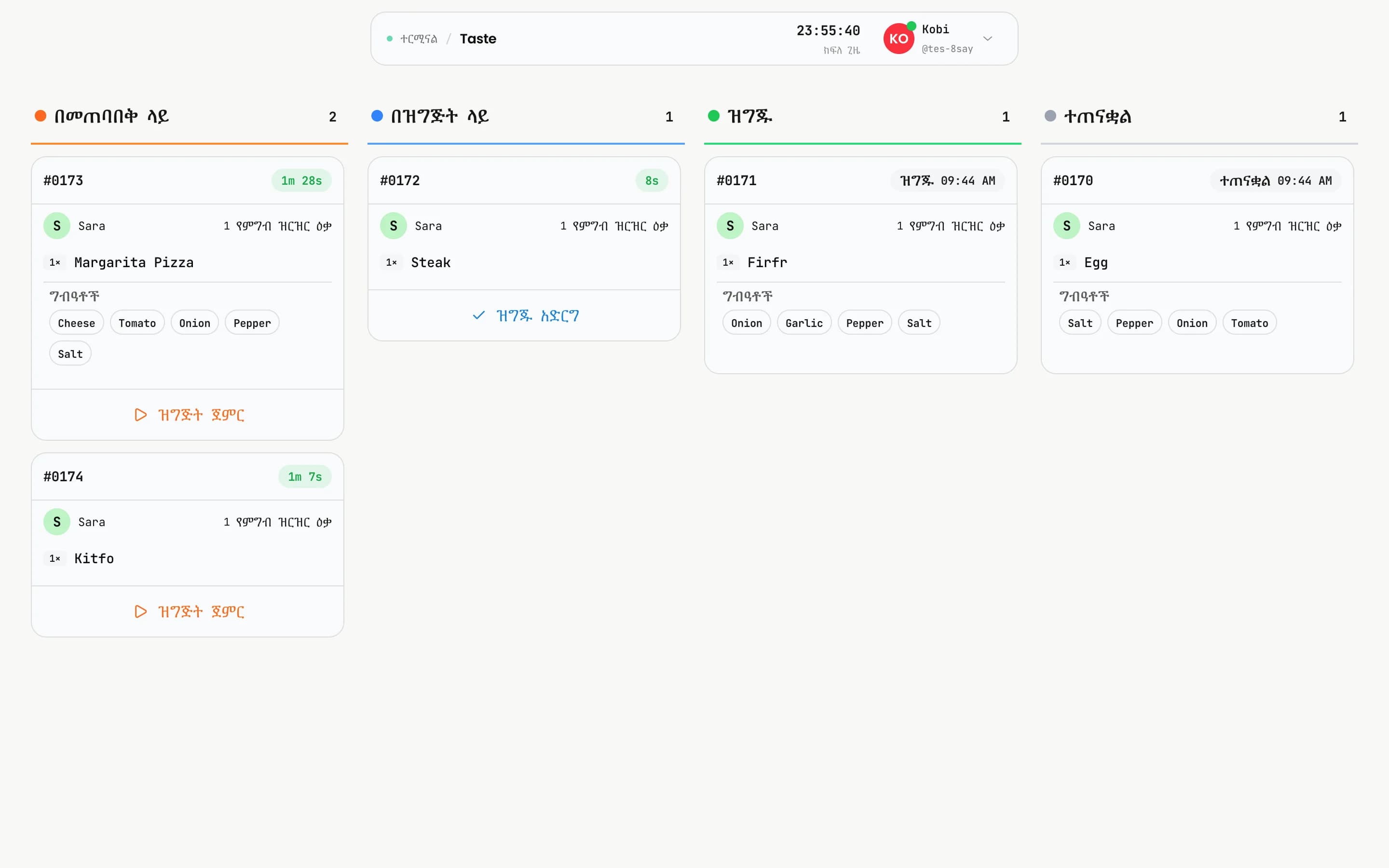
The four columns
The columns show the stage of each order. The small number beside a column name is how many orders are in that stage right now.Pending (orange): new orders that nobody has started yet. Start here.Preparing (blue): orders the kitchen is cooking now.Ready (green): food that is finished and ready to be served.Completed (gray): orders that are done. They stay on the screen so you can look back at them.What each card tells you
Order number (for example #0173): the number of the order. Use it to match the food to the right order.Customer name and item count: who the order is for and how many items they ordered.Dish and quantity (for example 1× Margarita Pizza): what to cook and how many.Timer (for example 5m 27s): how long the order has been waiting or cooking. The higher the time, the more urgent the order.Ingredients: the items needed for that dish, such as Cheese, Tomato, Onion, Pepper, and Salt. Use this as a quick check before you start cooking.On Ready and Completed cards, the timer is replaced by the status and the time the order reached it.The top bar
The top bar shows which terminal you are using (for example Taste), the current time, and the staff member signed in.How to use it while cooking
You only need two buttons. When you press one, the card moves to the next column by itself.- 1Look at the Pending column and pick the order with the longest timer.
- 2Select Start preparing when you begin cooking. The order moves to Preparing.
- 3When the food is finished, select Mark ready. The order moves to Ready, and the team knows it can be served.