Transactions
Record every change to your stock, including purchases, sales, returns, and waste. Track quantities, costs, revenue, and inventory performance in one place.
How it works
Each time stock goes up or down, Majet OS saves a transaction with the item, quantity, and money involved. This keeps your stock records and profit calculations accurate.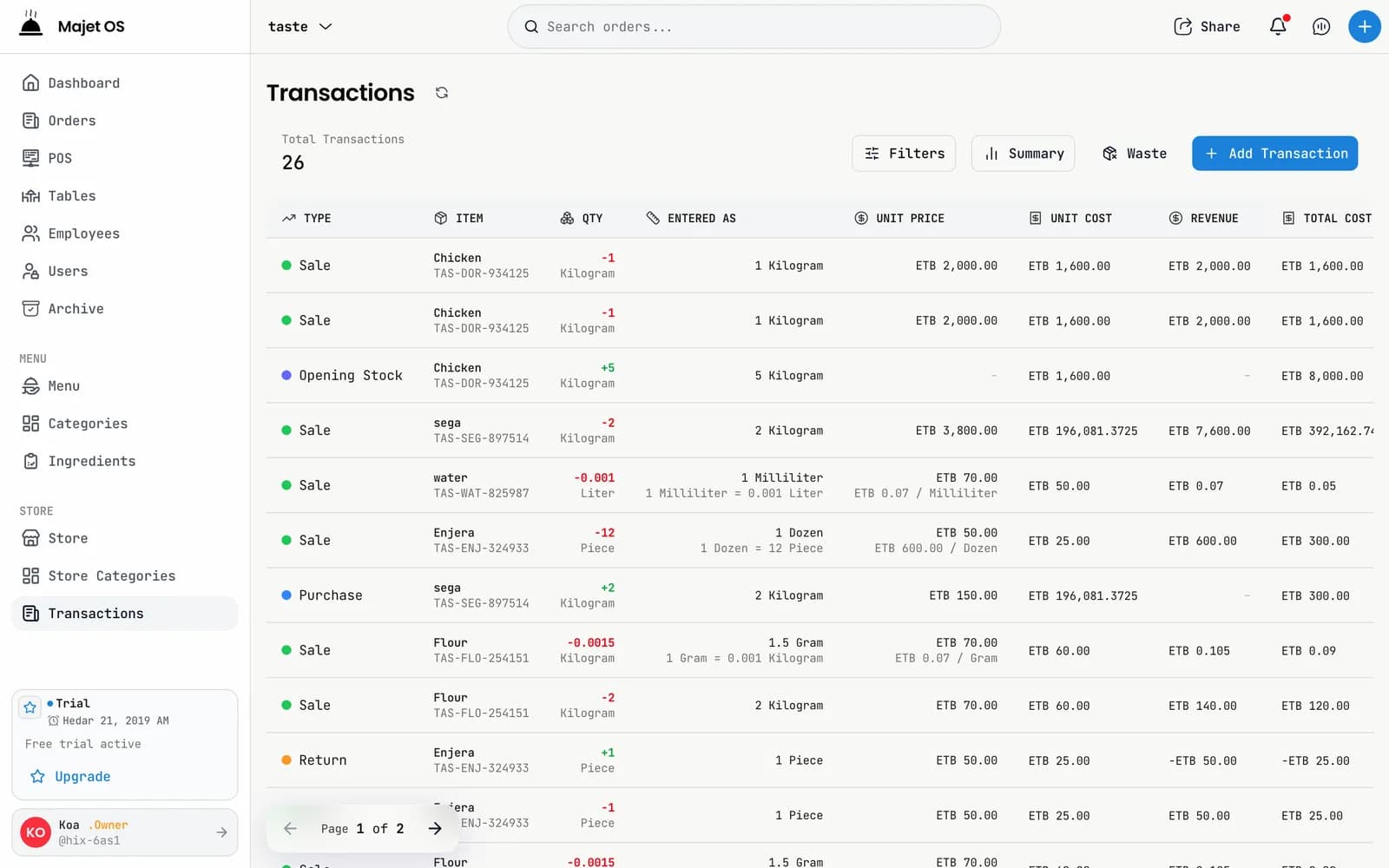
- 1In Qty, a green + means stock increased, while a red − means stock decreased.
- 2Entered Asshows the unit you entered. For example, if you sell 1 Dozen, stock decreases by 12 Pieces because Majet OS converts it to the item's stock unit.
- 3Revenue and cost columns show the financial amounts for each transaction. A return displays its revenue as a negative amount.
Transaction types
Transactions are grouped by the type of inventory activity they represent.- 1Purchase: Stock comes in because you bought it.
- 2Sale: Stock goes out when you sell an item, generating revenue.
- 3Return: Sold stock comes back into inventory and the customer receives a refund.
- 4Waste: Stock is lost and can no longer be sold.
- 5Opening Stock: The starting quantity saved when you created the item.
Add a transaction
Use Add Transaction to record a purchase, sale, return, or waste activity.- 1Select Add Transaction at the top right.
- 2Choose a tab: Purchase, Sale,Return, or Waste.
- 3Complete the required fields in the selected form.
- 4Select the blue Record button at the bottom.
Record a purchase
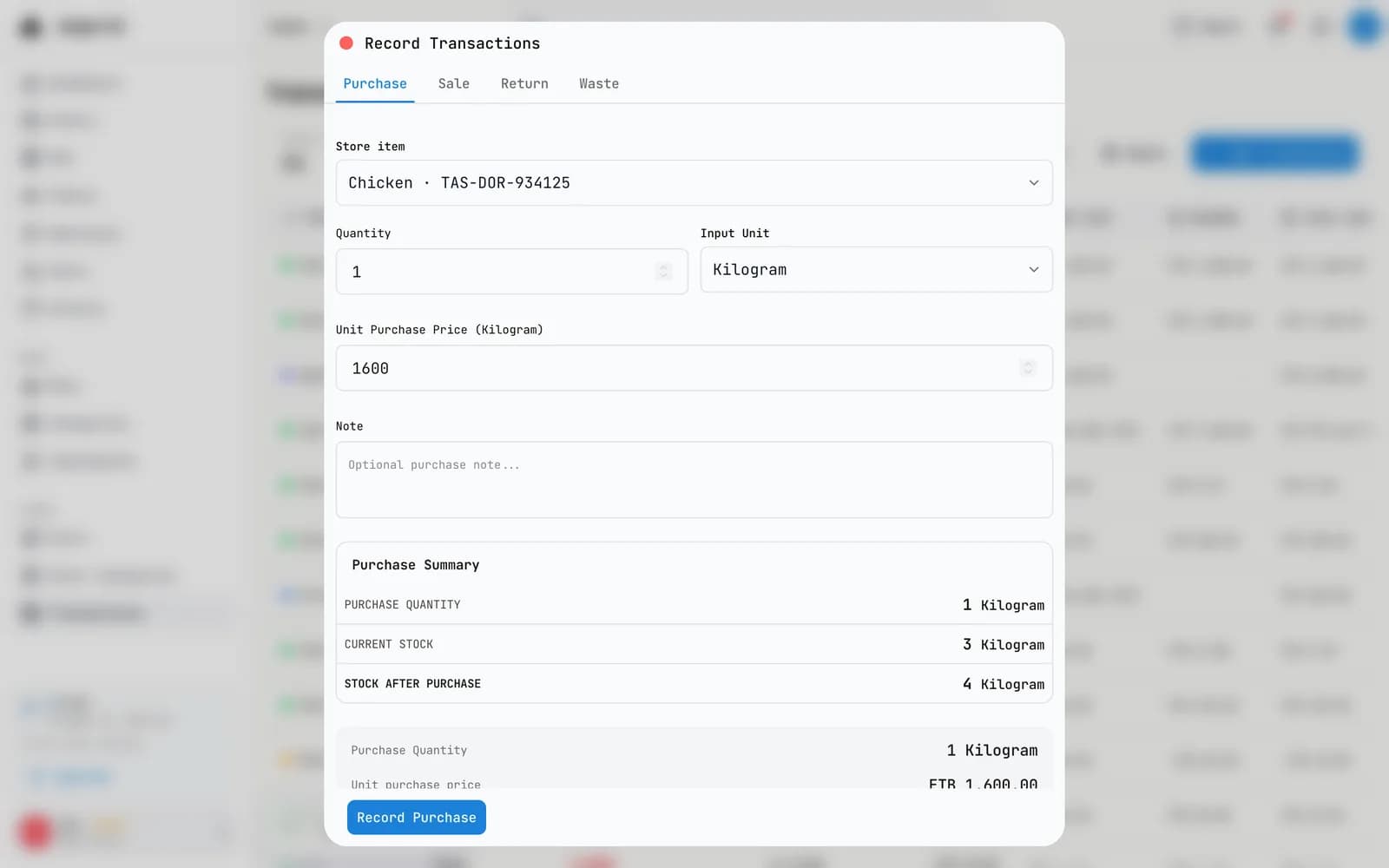
Use this option when you buy stock and receive it into your inventory.- 1Choose the Store Item.
- 2Enter the Quantity and choose the Input Unit, such as Kilogram.
- 3Enter the Unit Purchase Price for one unit.
- 4Check the Purchase Summary. It shows your current stock and the quantity you will have after the purchase.
- 5Select Record Purchase.
Record a sale
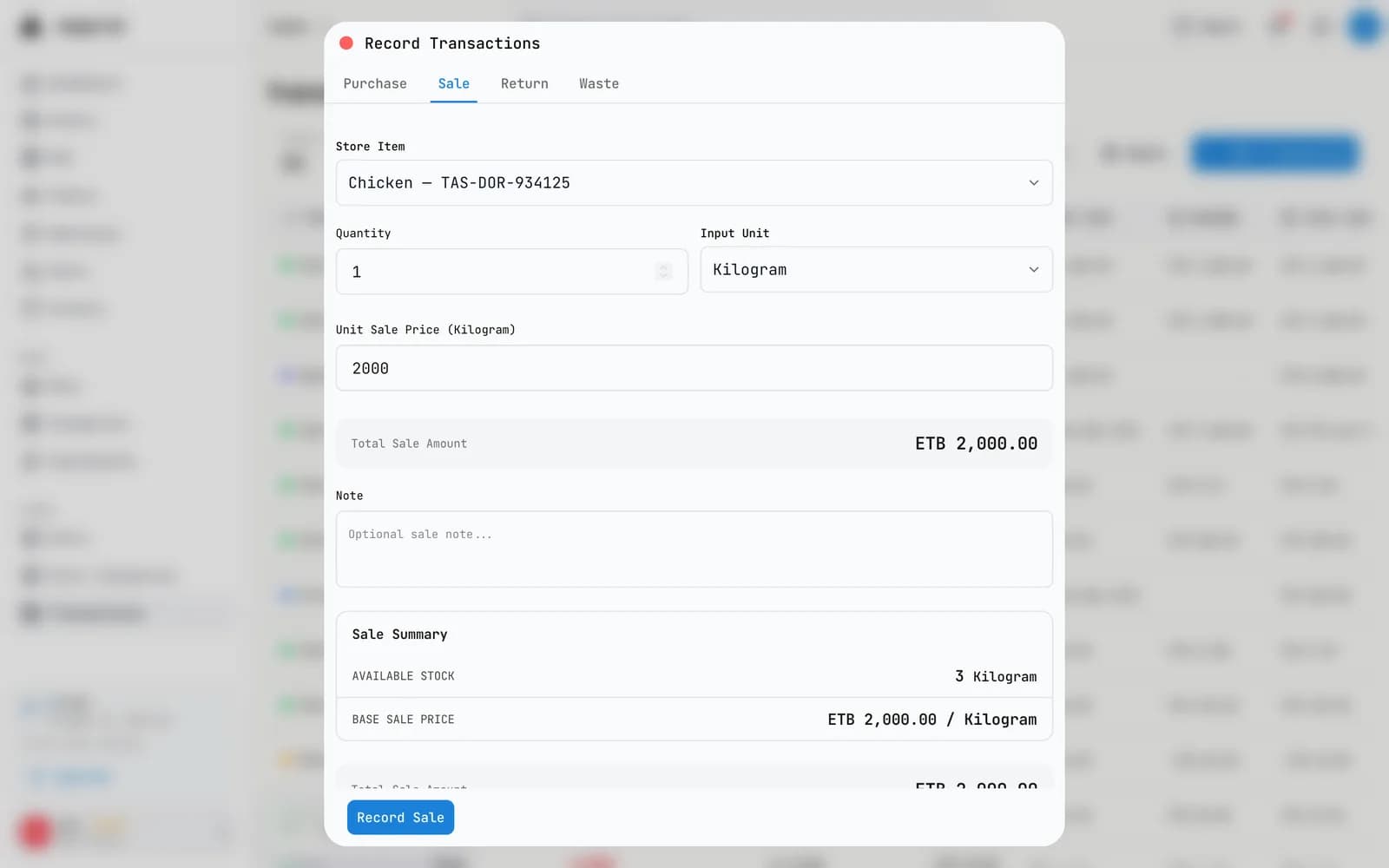
Use this option when you sell an item from your store inventory.- 1Choose the Store Item.
- 2Enter the Quantity and choose the Input Unit.
- 3Check the Unit Sale Price. The Sale Summary shows the base sale price saved on the item.
- 4Check the Available Stock and Total Sale Amount.
- 5Select Record Sale.
Record a return
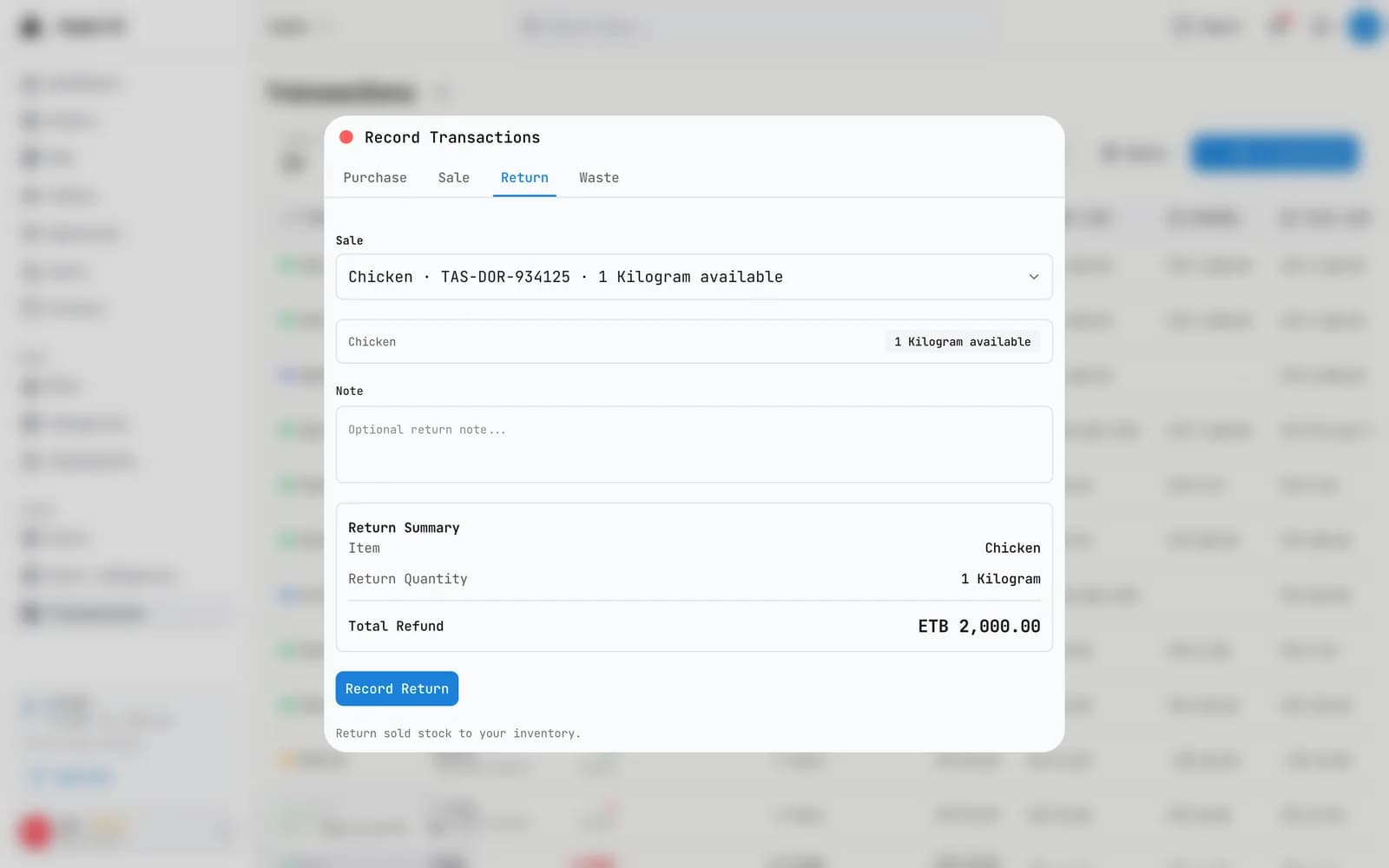
Use this option when a customer returns previously sold stock. The returned quantity is added back to your inventory.- 1Choose the Sale to return. The list shows how much of each sale is still available to return.
- 2Check the Return Summary, including the item, quantity, and Total Refund.
- 3Add a note if needed, then select Record Return.
Record waste
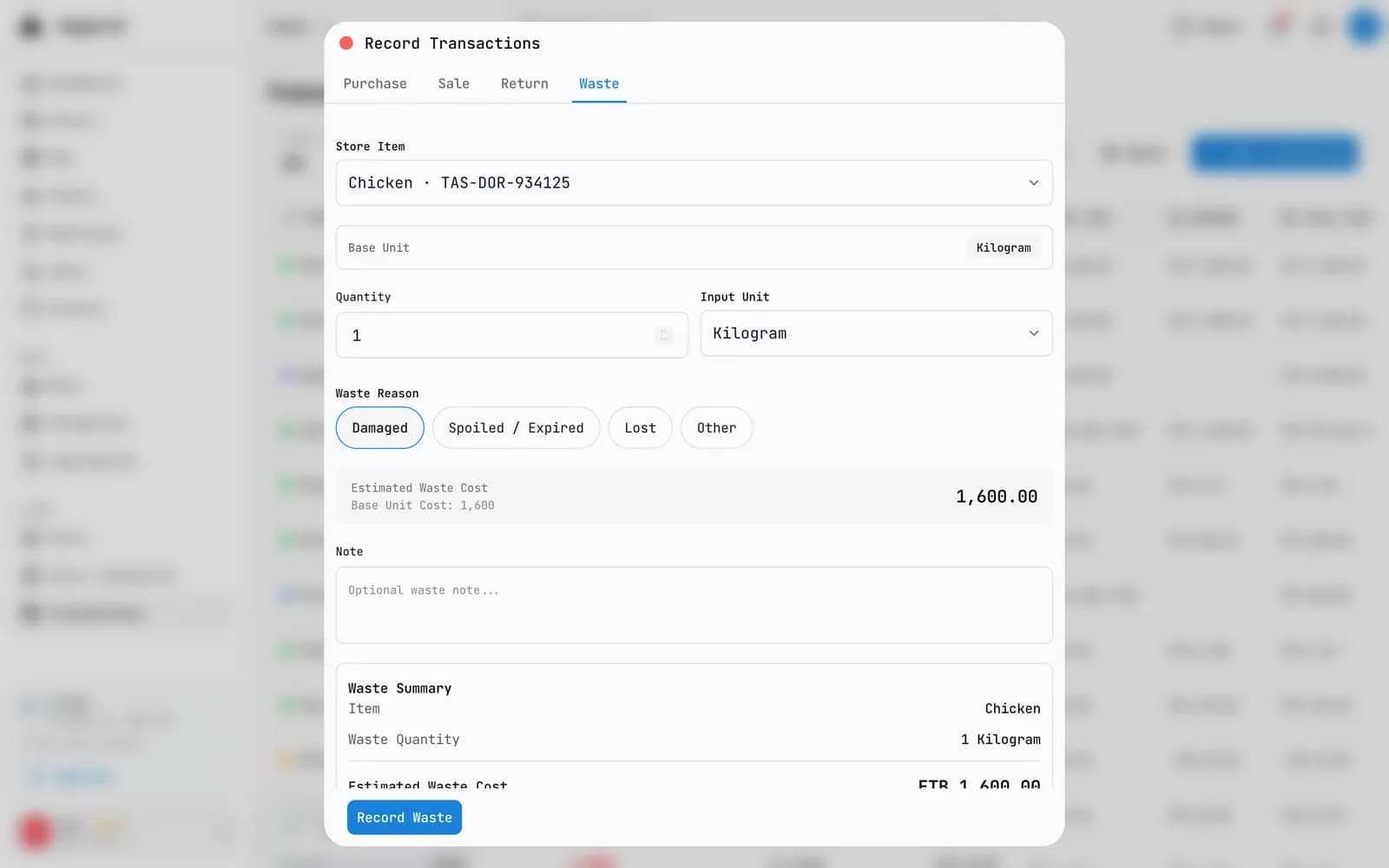
Use this option when stock is damaged, spoiled, expired, or lost and can no longer be sold.- 1Choose the Store Item. The Base Unit shows the unit used to store the item.
- 2Enter the Quantity and choose the Input Unit.
- 3Choose a Waste Reason: Damaged, Spoiled / Expired, Lost, or Other.
- 4Check the Estimated Waste Cost. It is calculated using the quantity and the item's unit cost.
- 5Select Record Waste.
Filter transactions
Filters help you find specific transactions by type and date.- 1Select Filters.
- 2Choose a transaction type, or keep All types. You can also select the From and To dates.
- 3Select Apply filters to display matching records.
- 4Select Reset to clear the selected filters.
Transaction summary
Select Summary to review your stock and sales performance. Use Today or This month to change the reporting period, or use the date button to select another day.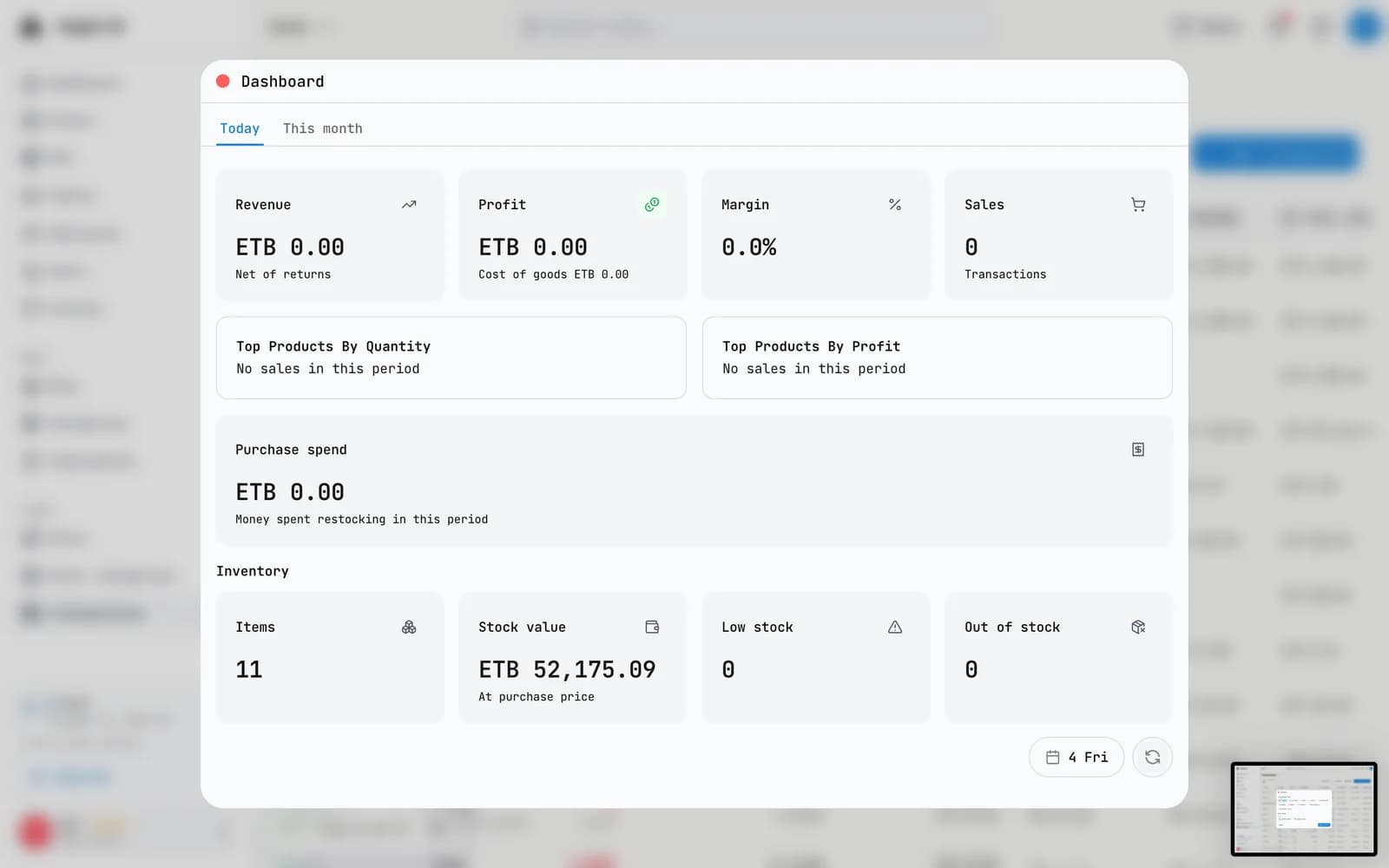
- 1Revenue: Money from sales minus returns.
- 2Profit: Revenue minus the cost of goods. Margin shows that profit as a percentage.
- 3Sales: Counts the sale transactions recorded during the selected period.
- 4Top Products: Ranks items by quantity sold and profit.
- 5Purchase Spend: Shows the money spent on restocking.
- 6Inventory: Shows the item count, stock value at purchase price, and the number of low-stock or out-of-stock items.
Waste report
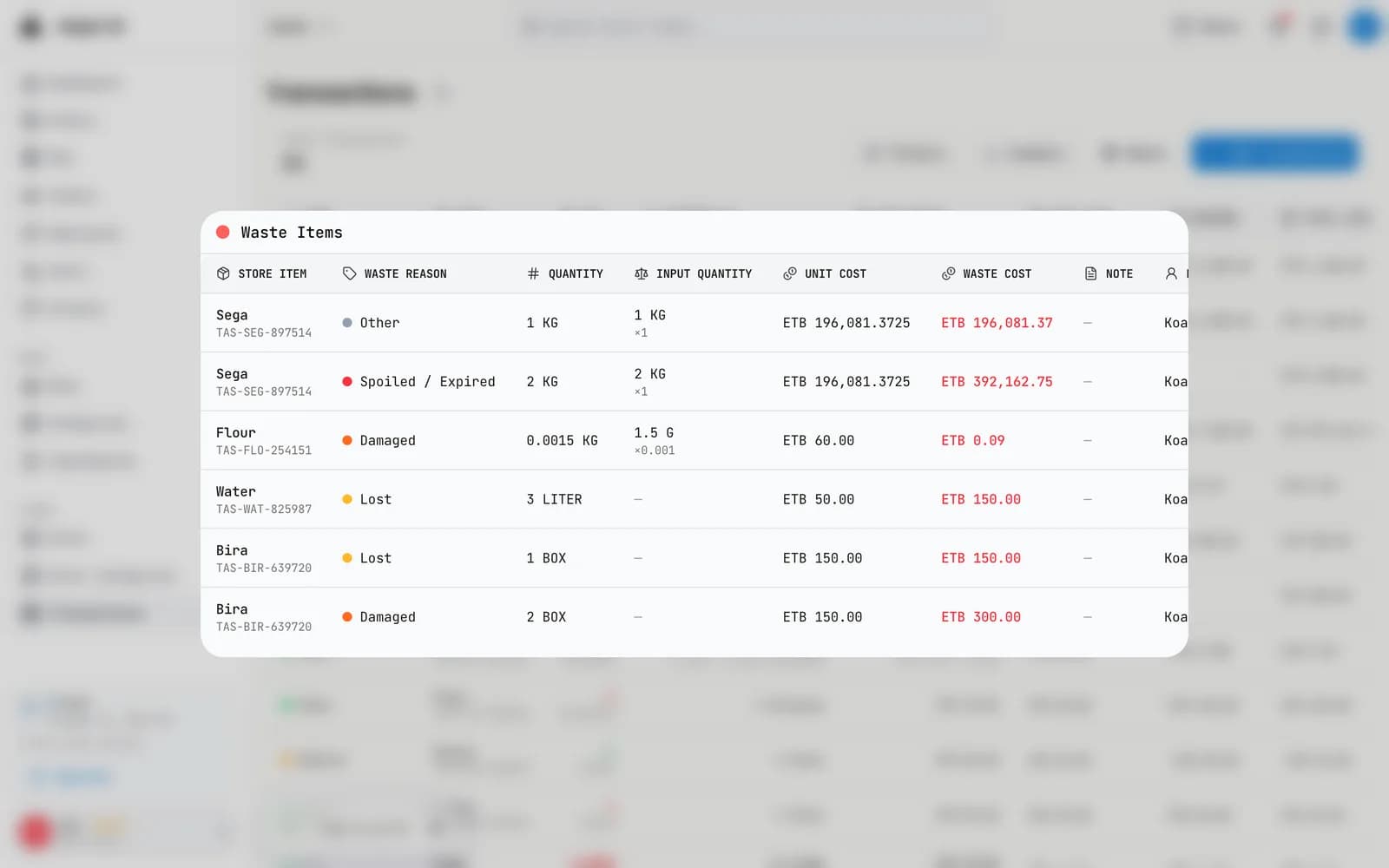
Select Waste to review recorded waste activities. Each record includes the reason, quantity, cost, note, and the person who recorded it.