Waiter app
Take customer orders, manage tables, track order progress, and complete payments directly from your phone.
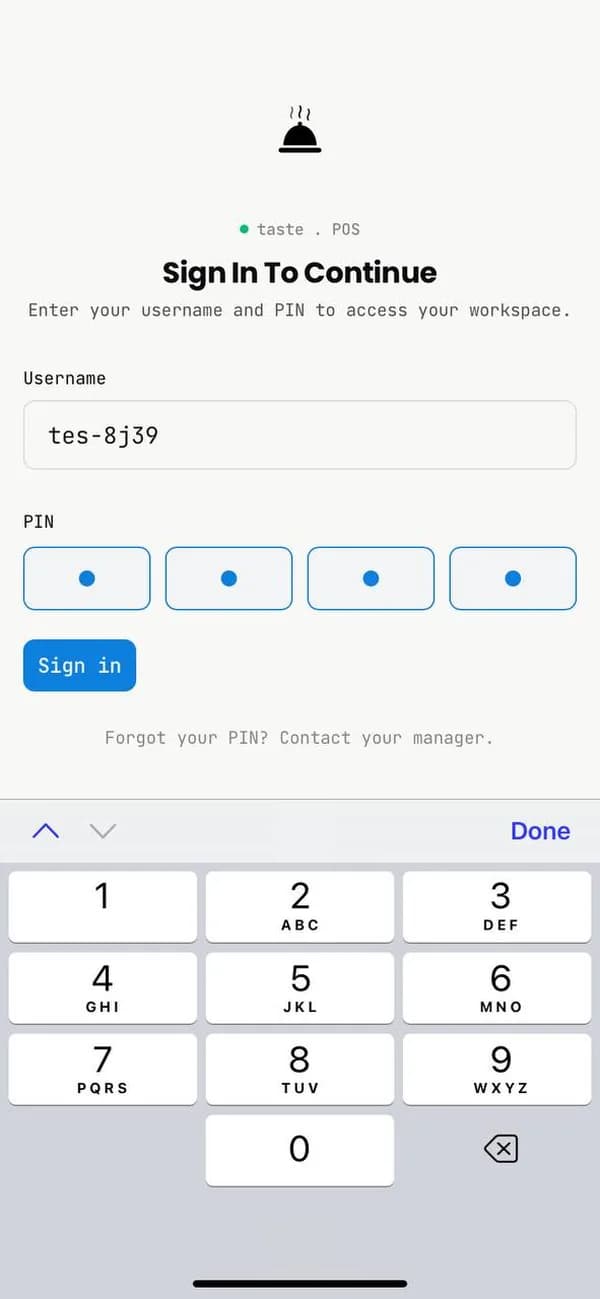
Sign in
Your manager provides you with a username and a 4-digit PIN. Your username is your staff ID from the Employees list, without the @ symbol. If you forget your PIN, ask your manager to reset it.- 1Enter your Username, for example tes-8j39.
- 2Enter your 4-digit PIN.
- 3Select Sign in to access the waiter app.
Take an order
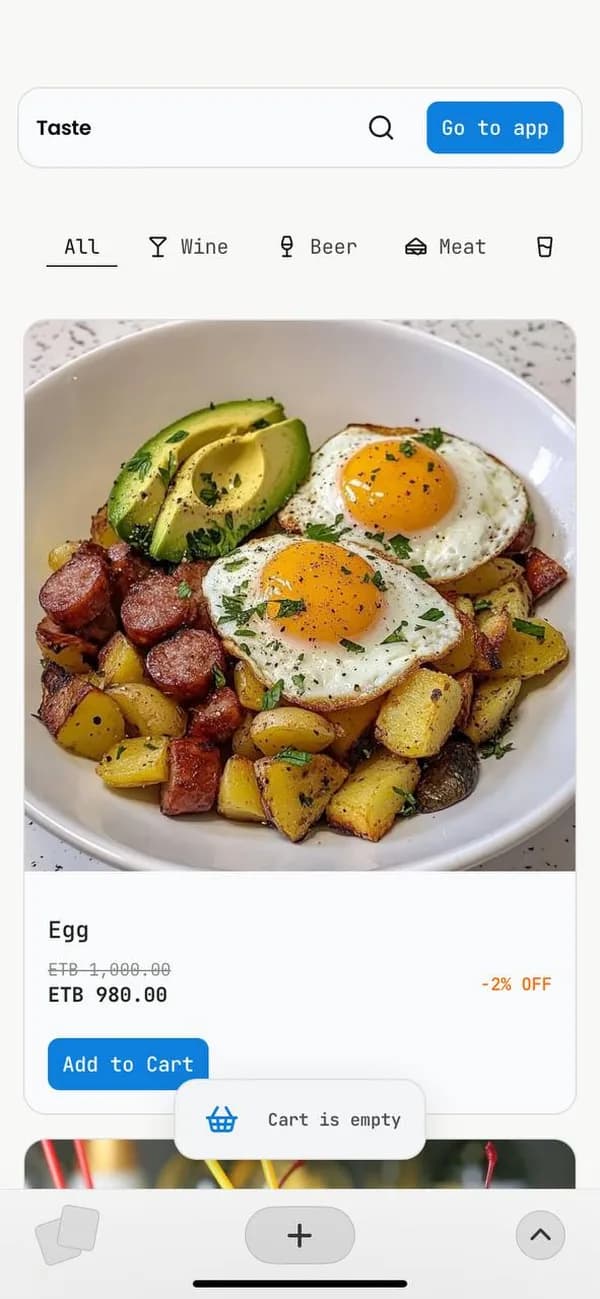
Browse the restaurant menu, select the items requested by the customer, and add them to your cart. You can adjust quantities and review the order before confirming it.- 1Find the item by swiping through the category tabs at the top, such as All, Wine, Beer, and Meat, or use the search icon.
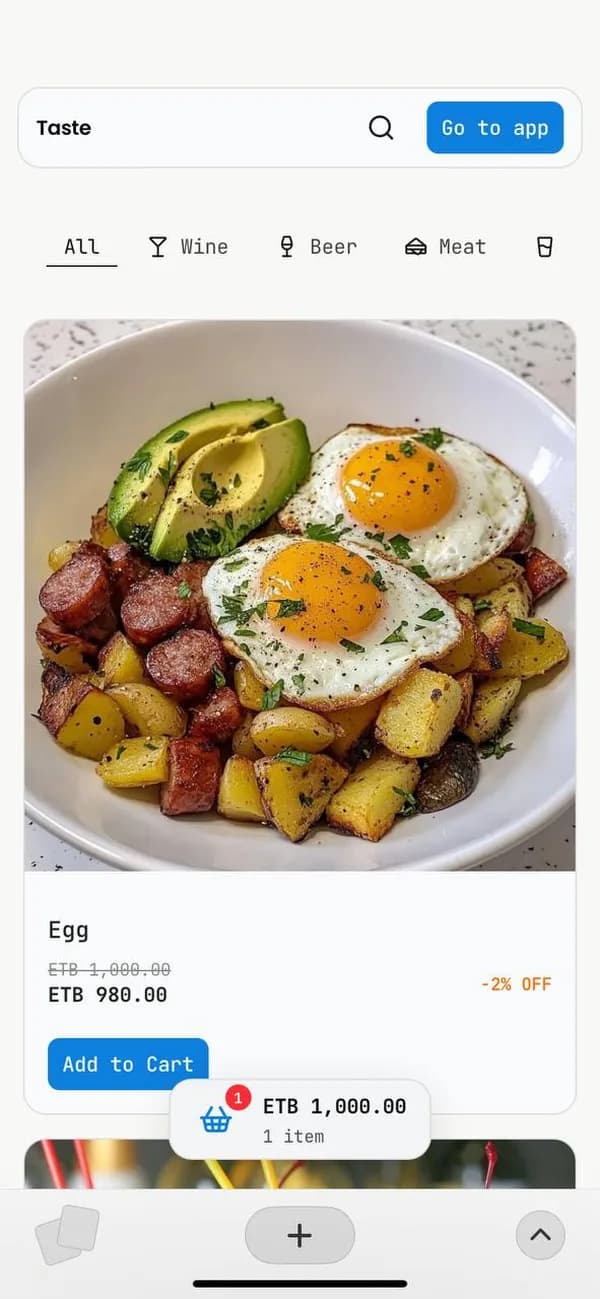
- 2Select Add to Cart. A basket appears at the bottom showing the total and number of items.
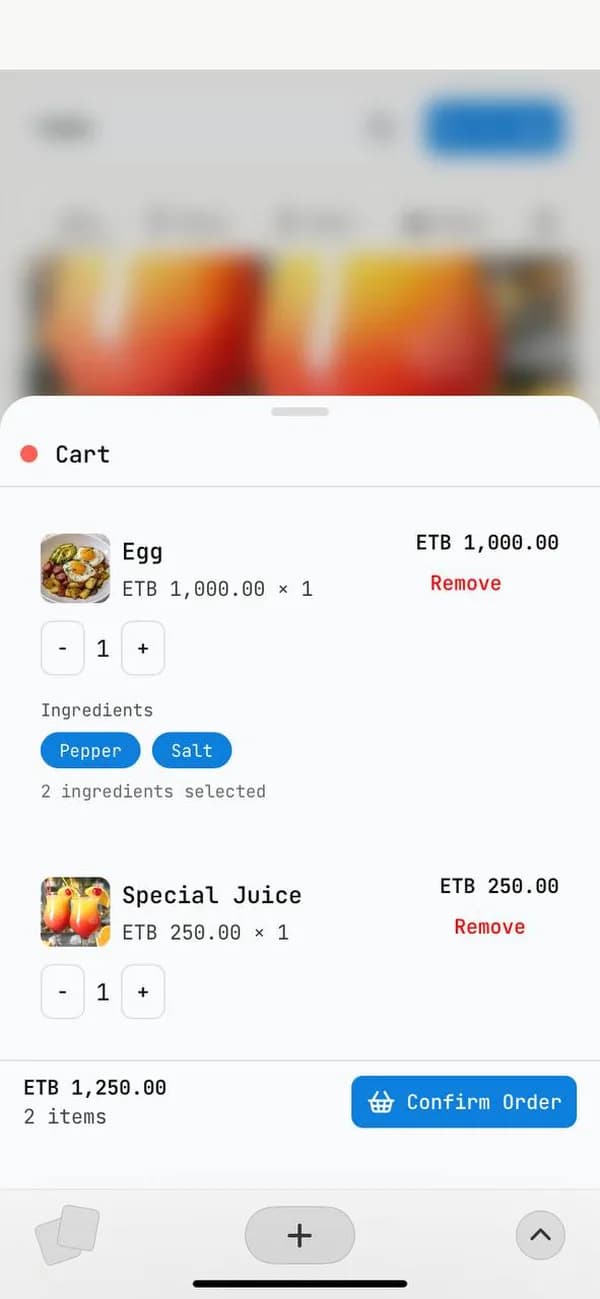
- 3Select the basket to open your cart.
- 4Use − and + to change quantities, or select Remove to delete an item. If an item has ingredients, choose which ones to include.
- 5Review the total at the bottom and select Confirm Order.
Choose the table and account
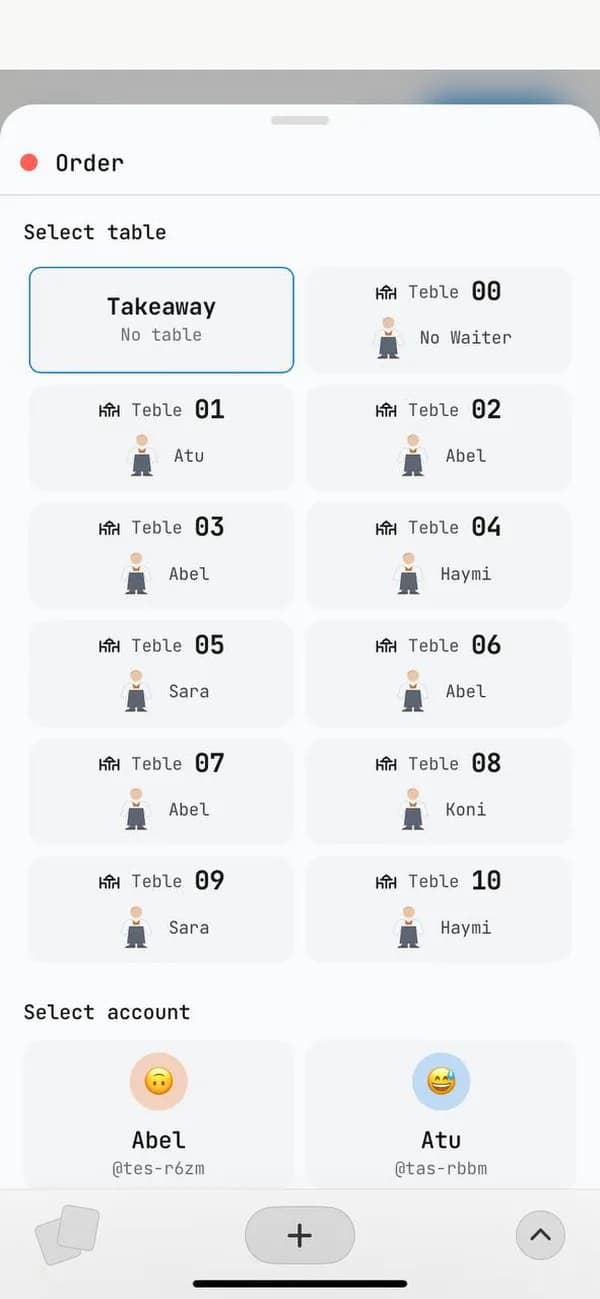
After confirming the cart, select where the order will be served and which waiter is responsible for it.- 1Under Select table, choose the table. Each table shows its assigned waiter. Choose Takeaway if the order leaves the restaurant.
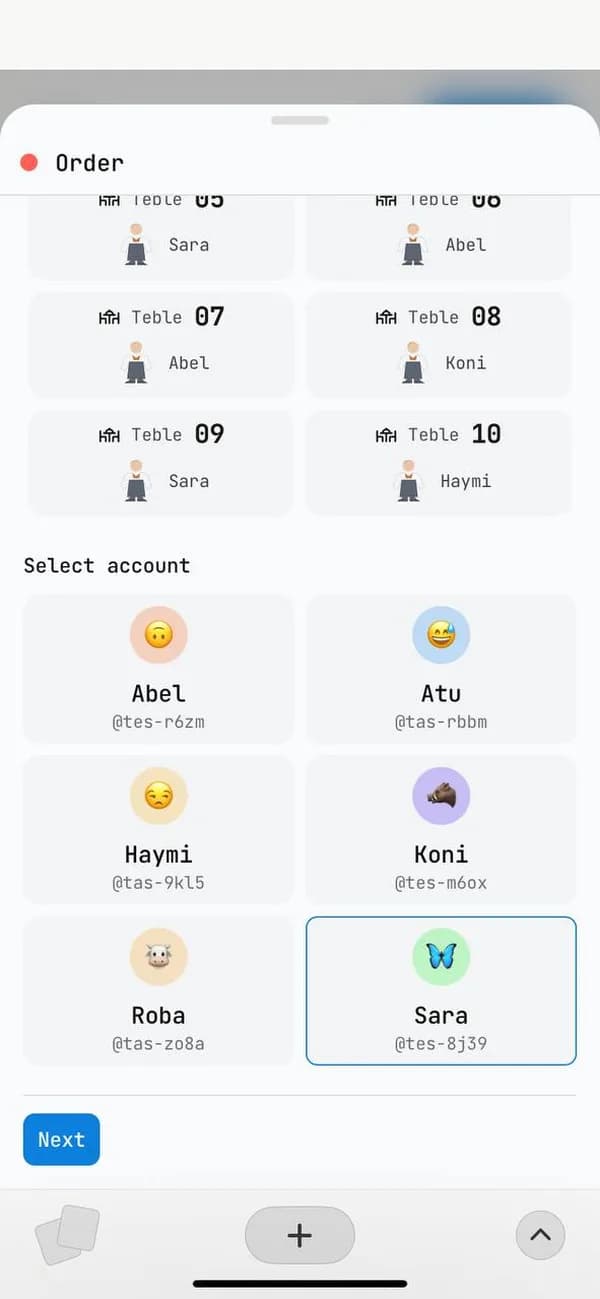
- 2Under Select account, choose the waiter taking the order. Select your own name.
- 3Select Next. The order is created and appears as Pending on your dashboard.
Follow your orders
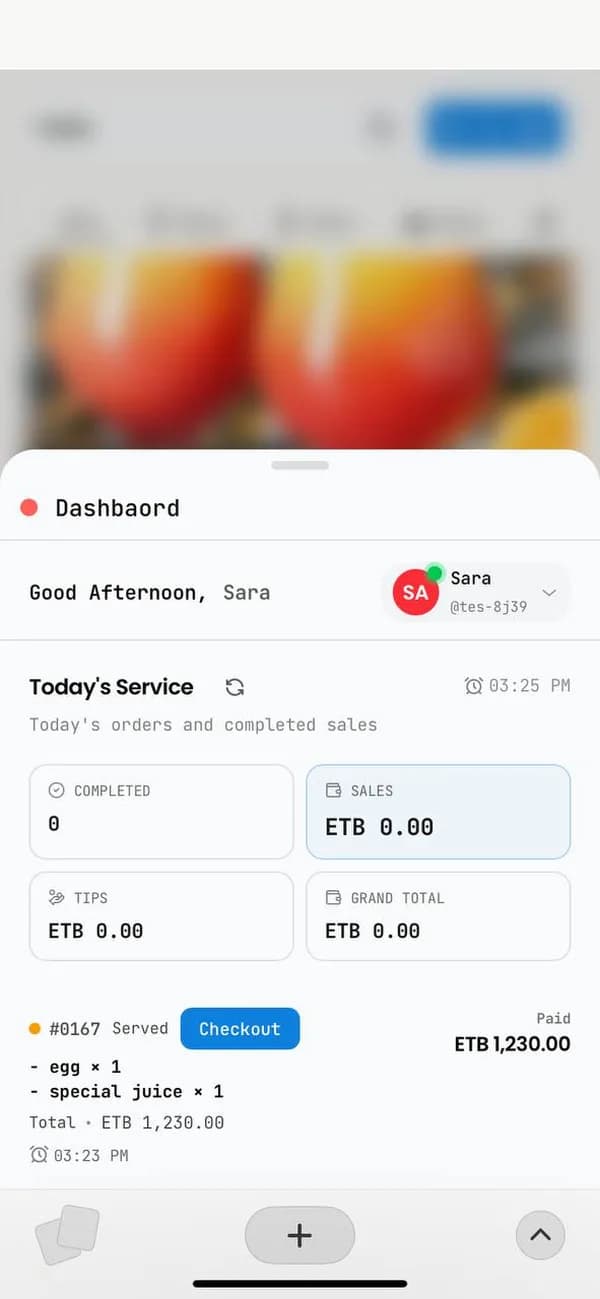
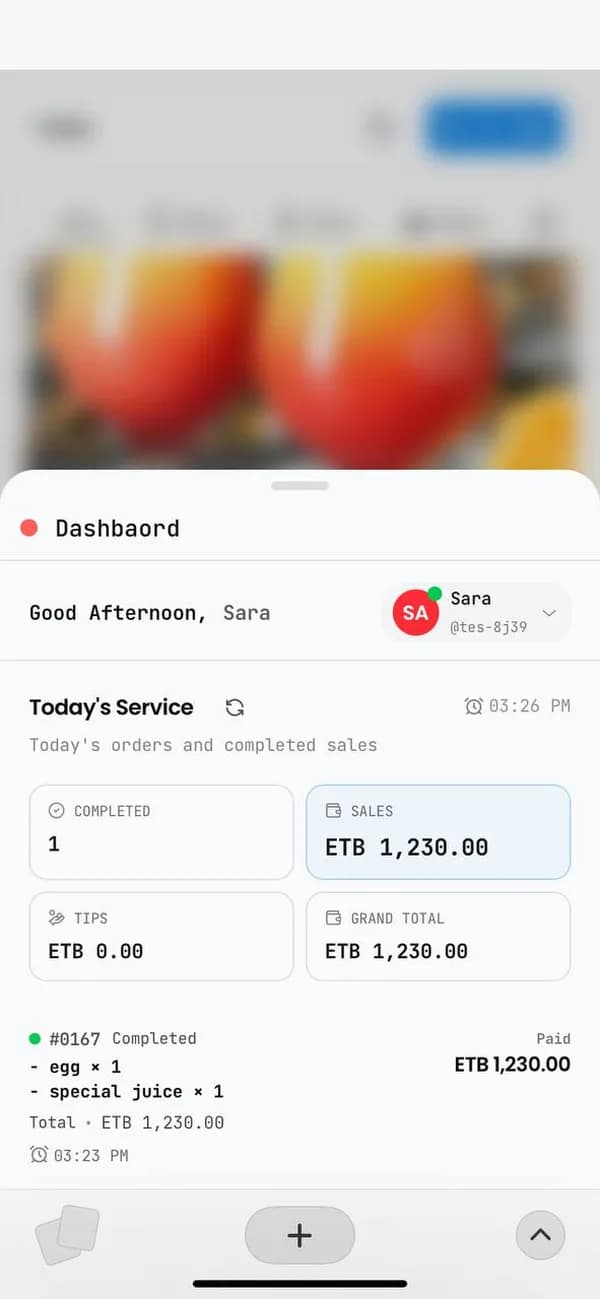
Open your dashboard from the bottom navigation bar. Today's Service shows your completed orders, Sales, Tips, and Grand Total. Your orders for the day appear below these figures.Select the refresh icon to load the latest order statuses and updates.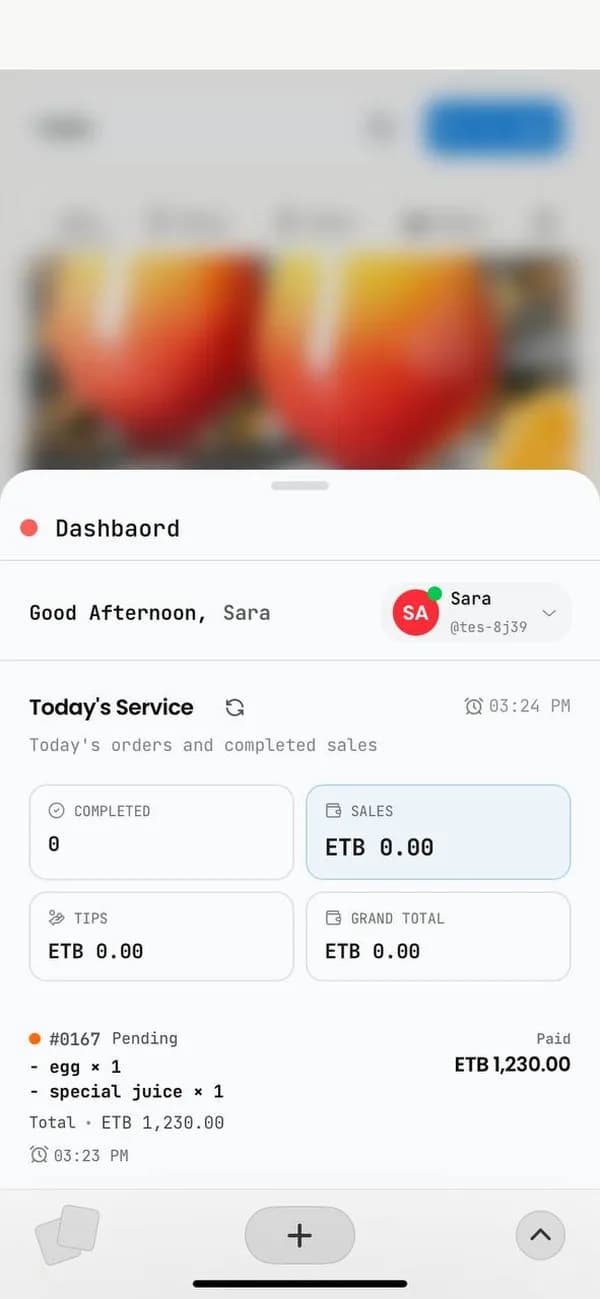
Close out an order
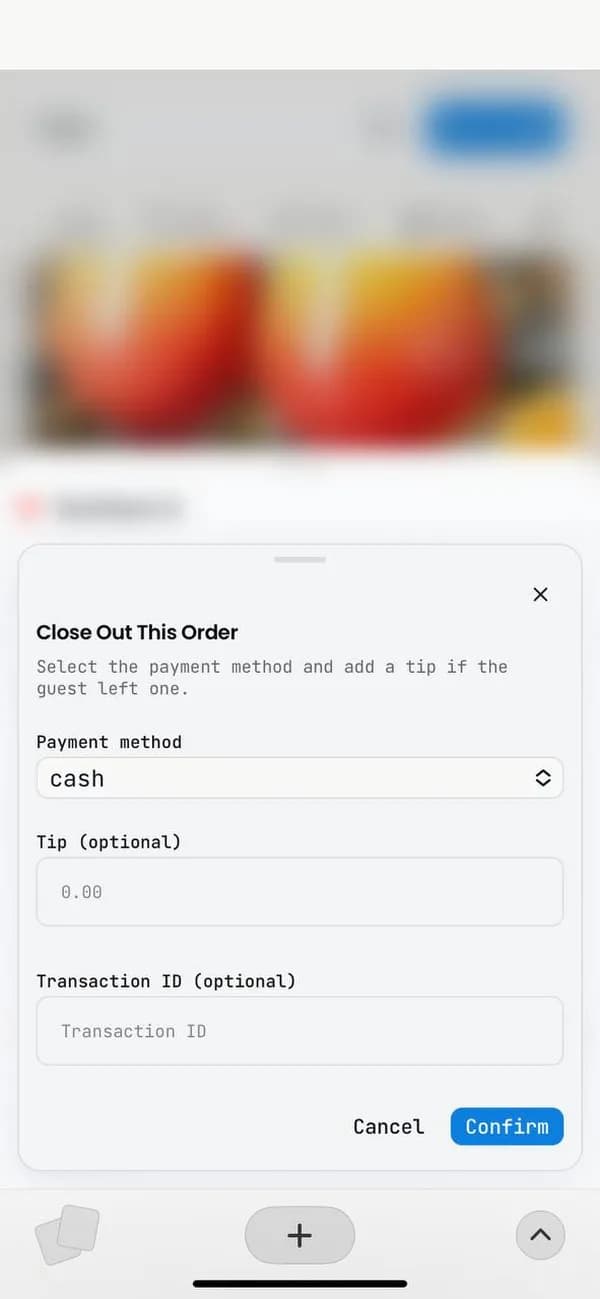
When an order is marked as Served, a Checkout button appears next to it. Use checkout to record the customer's payment and complete the order.- 1Select Checkout.
- 2Choose the Payment Method, for example cash.
- 3Enter a Tip if the customer left one. This field is optional.
- 4Enter a Transaction ID if the payment has one. This field is optional.
- 5Select Confirm. The order becomes Completed and is included in your Sales.
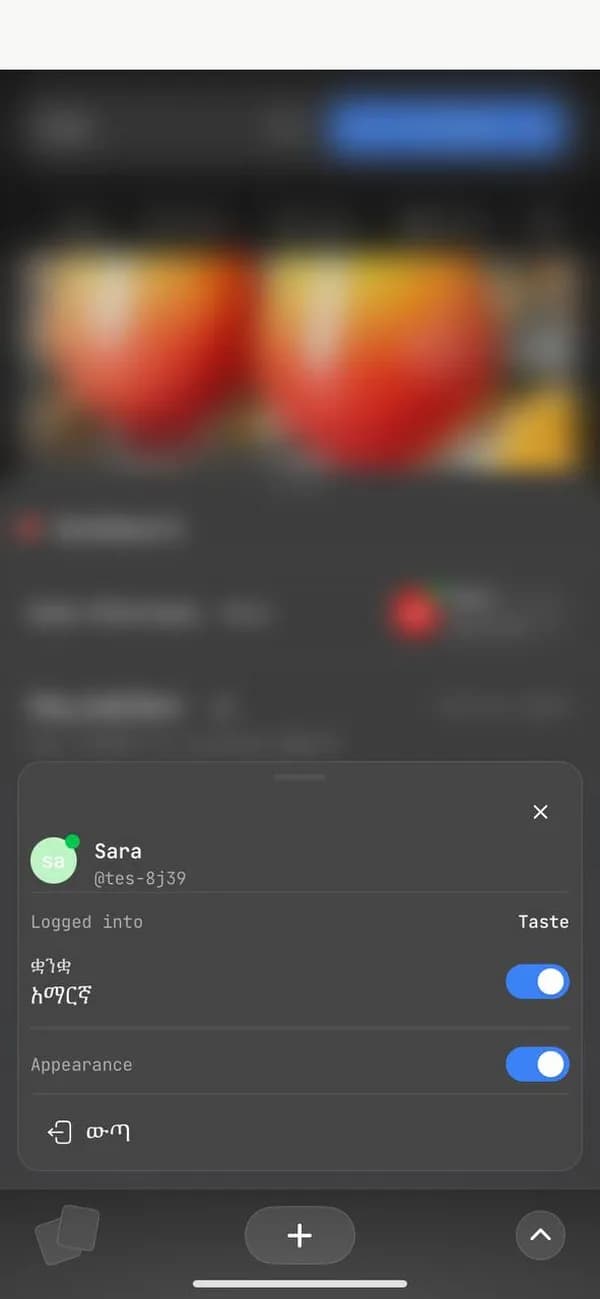
Your profile
Select your name at the top of the dashboard to open your profile. You can view your name, staff ID, and the business account you are currently logged into.Use the available toggles to change the language and appearance. Select the last row to log out of the waiter app.